
Introduction
To eliminate the issue of overlapping company cars or not knowing which car is available, our company has digitized the entire car booking process. With just a few clicks on the system, you can proactively view the available schedule and "reserve" the car you need. Below is a detailed step-by-step guide.
Step 1: Open the Car Booking Calendar
Log in to the internal system.
On the main screen (App Launcher), find and click on the applicationCalendar.
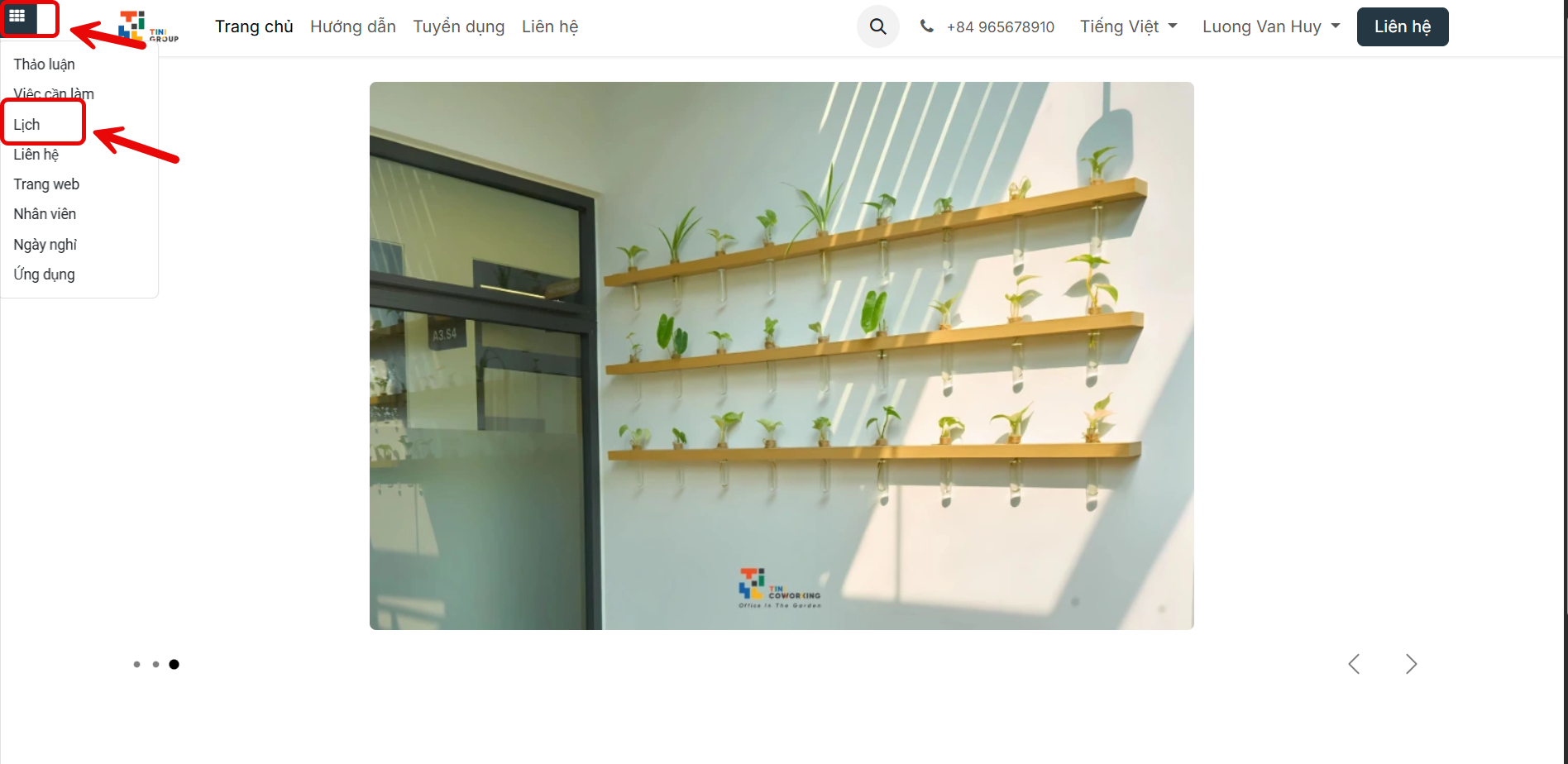
Step 2:Create a new booking calendar.
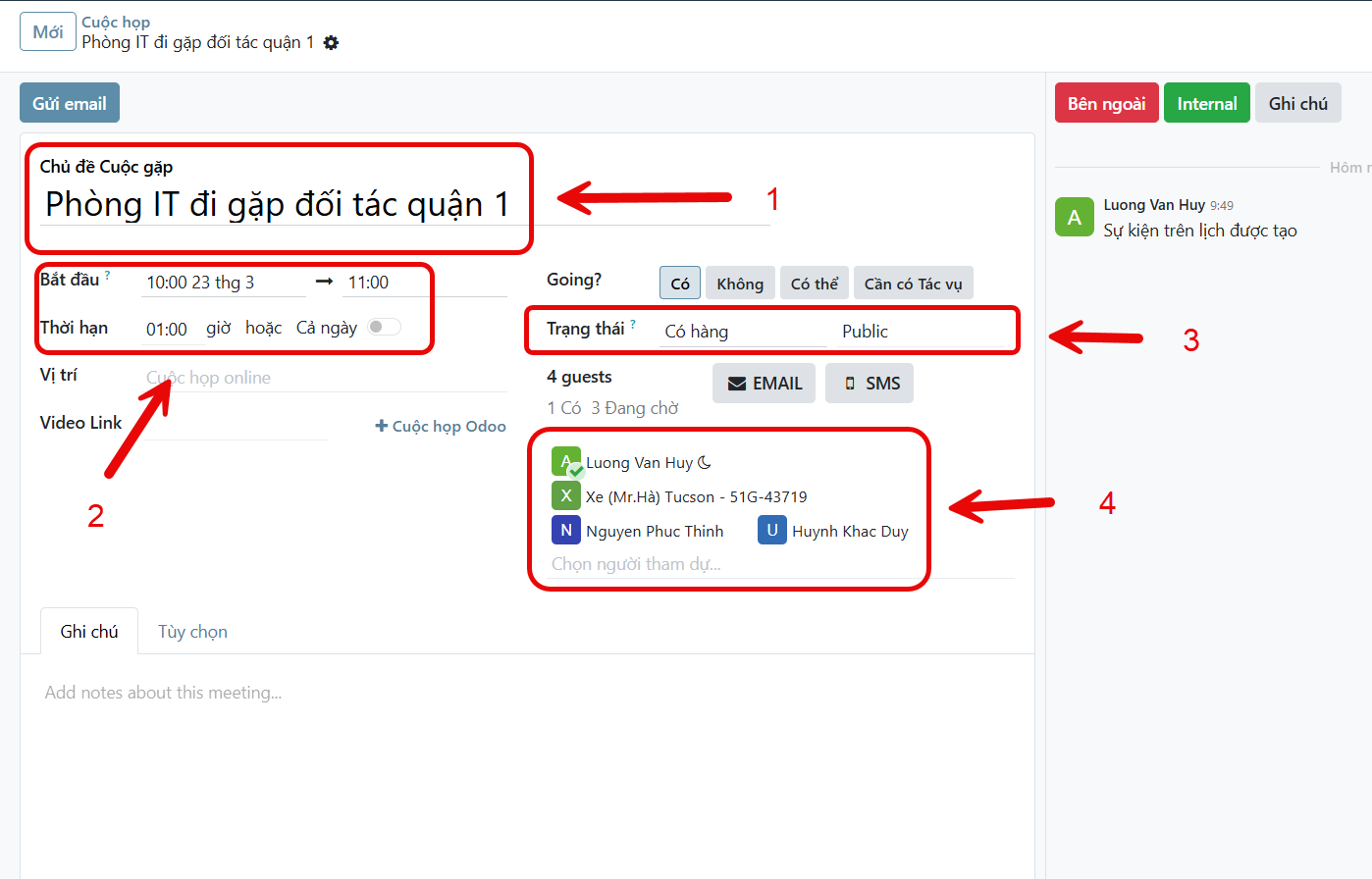
In the "Meeting Subject": Clearly state the purpose of use. (For example:IT Department meeting with partners in District 1).
Select the start and end time.
Select the status "Available", "User default" select "Public".
Select participants: Choose "Car (Mr. Hà) Tucson - 51G-43719", participants, and the HR Department.
Step 3:Click send email
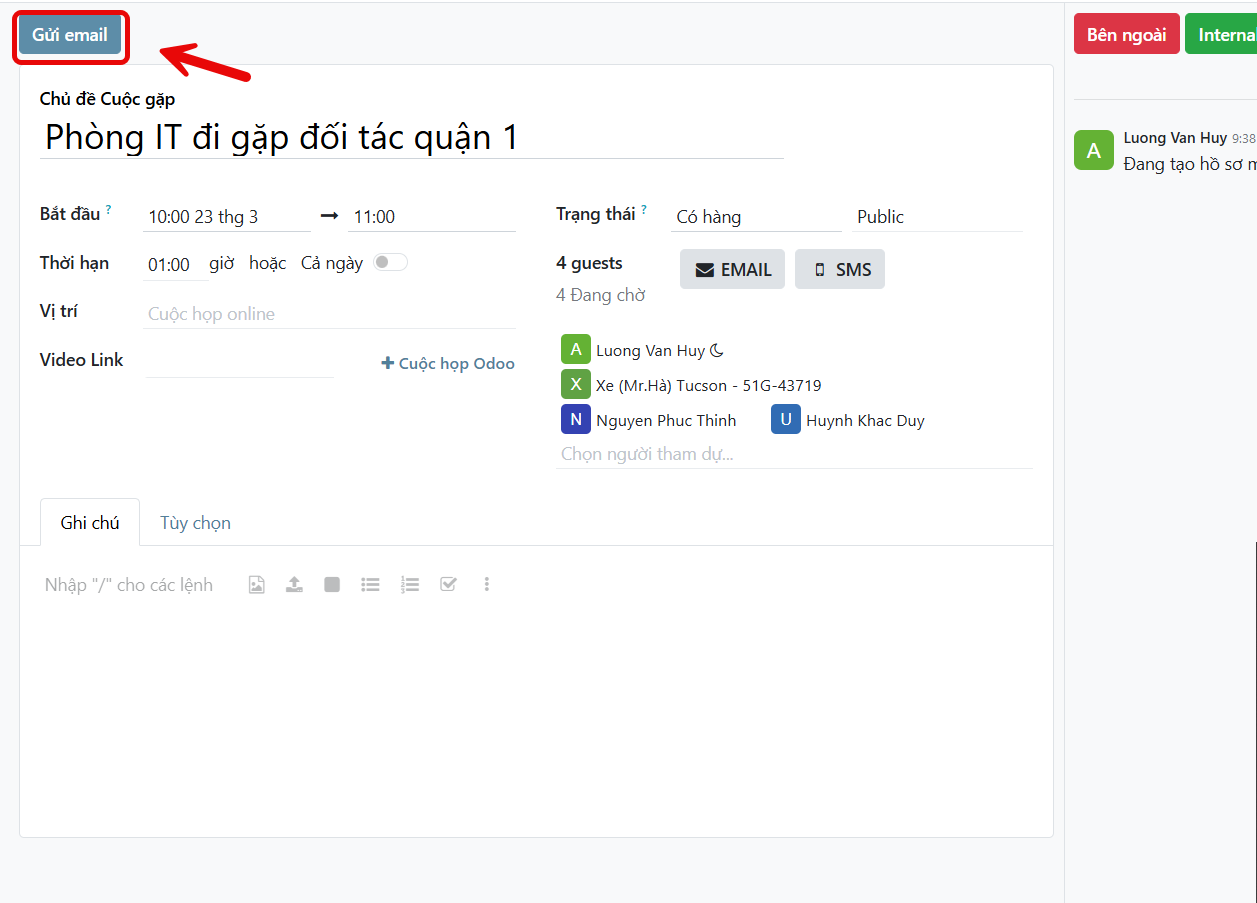
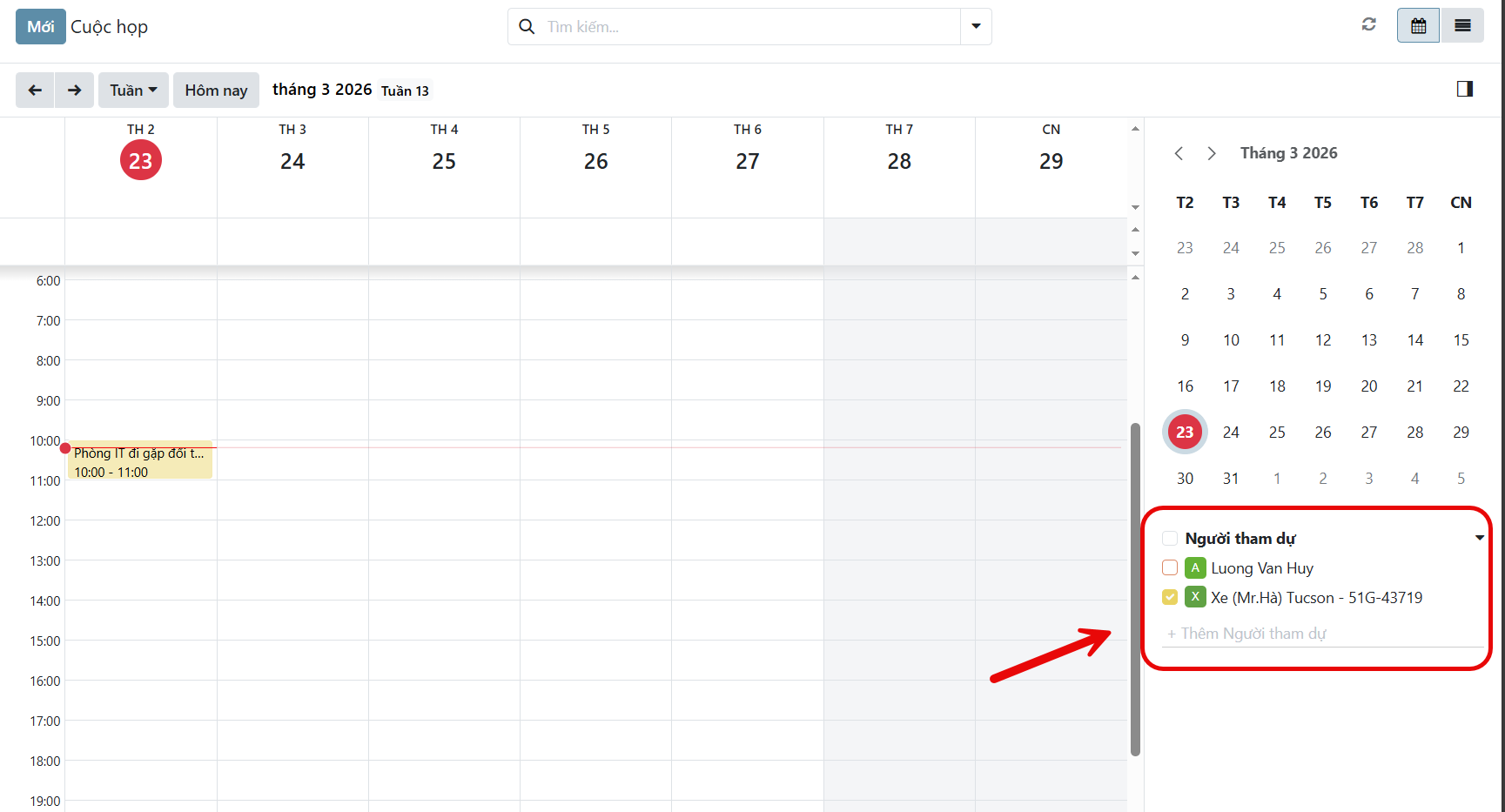
Step 4:Tips for checking the schedule after successful booking.
- On the main screen of the Calendar application, look at the toolbar on the right.
- Click to add participants select "Car (Mr. Hà) Tucson - 51G-43719".
During the process, if the system shows a red warning or you encounter any issues, please contact the IT department immediately.